When you manage remote access permissions, what really consumes an administrator’s time is rarely a hard technical problem. It is repetition.
Take a company with 100 employees and 50 managed machines. If everyone in R&D needs to reach every development host, an administrator has to create each grant one at a time. A new hire joins, someone transfers, someone leaves — and the whole exercise starts again. Worse, once the number of grants reaches the thousands, nobody can say for certain who granted a particular one, or why.
Solving this is what SOSI 2.2.0 is about.
Group the people, group the machines, pair them once
The new version introduces three concepts: user groups, device groups, and the group grant that binds the two together.
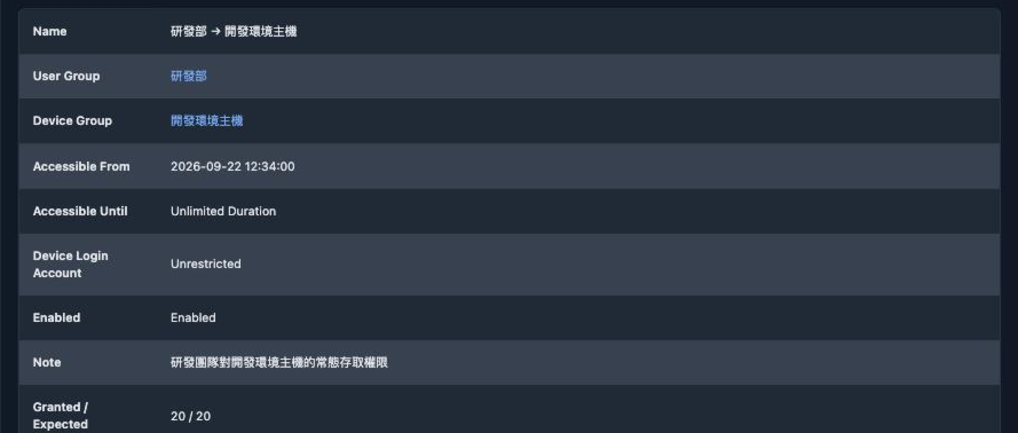
An administrator puts the R&D members into a user group, puts the development hosts into a device group, and creates a single group grant: “R&D → Development hosts”. The system immediately expands that declaration into individual grants — one for every person in the group against every machine in the group.
What used to take 20 operations for 5 people and 4 machines now takes one. Conditions such as the access period, the hours of the day when connections are allowed, and whether to use LDAP auto sign-in are configured once and applied to the whole set.
No more going back to patch up after staffing changes
The real value of this mechanism is that it maintains itself.
A new member joins the R&D group and immediately receives access to every machine the group grant covers. Someone leaves or transfers to another department, and the grants derived from that group are revoked. The same holds for devices — add a new development host to the device group and every R&D member can reach it.
If you later need to narrow R&D’s access from around the clock to office hours, you change that one group grant and every derived grant updates with it. There is no list of dozens of records to edit one by one, and no risk of missing one halfway through.
See what was not applied, and why
The thing to fear with any bulk operation is not knowing whether all of it actually succeeded.
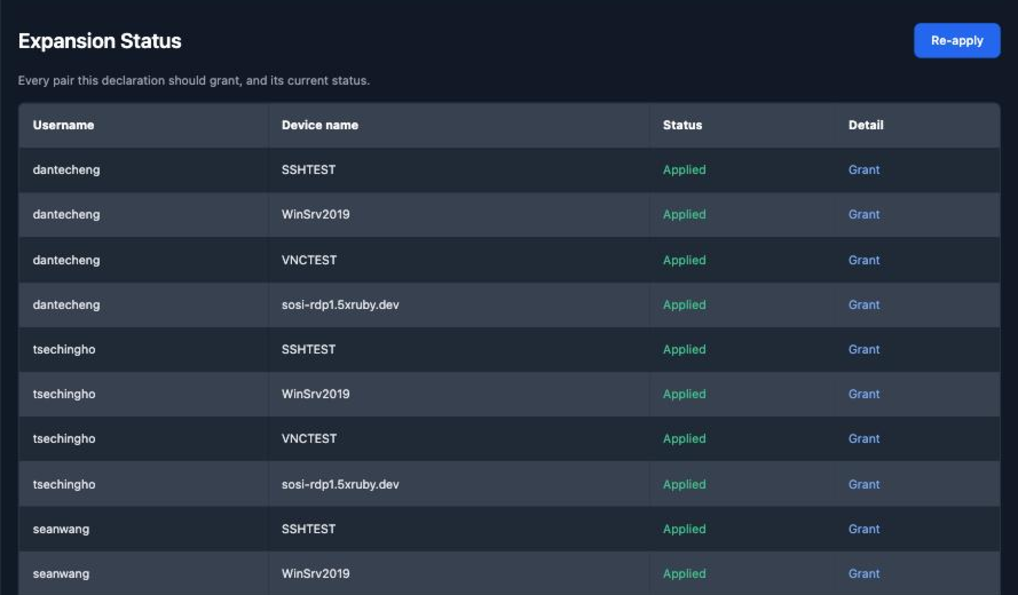
The group grant page shows Granted / Expected directly, along with the current state of every user-and-device pair. When a pair has not been applied, the page explains why — usually because that user already has a grant an administrator created by hand for that machine (the system will not overwrite existing manual settings), or because the device’s LDAP sign-in policy does not match the user’s authentication method.
An unapplied pair does not fail the batch; everything else still takes effect. Once the administrator has resolved the cause, Re-apply expands it again.
Keeping the settings from contradicting each other
A grant derived from a group shows its source group in the access list, and cannot be edited or deleted on its own.
That restriction is deliberate. If individual edits were allowed, the next group sync would overwrite them, and the administrator would be left with the baffling experience of a change that reverts itself. To adjust these grants you change the group grant, the change applies to the whole set, and the settings keep a single source of truth.
The access list also gained a filter, so you can look at only the manually created grants or only the group-derived ones — useful when reviewing which access is a one-off exception and which comes from a departmental rule.
Cases where you need to pin which account a particular person uses on a particular machine still call for a manually created device access grant. The group level deliberately does not offer this: applying one named account across a whole group would make everyone share the same login identity, leaving an audit unable to answer who actually performed an action.
Devices no longer have to be added one at a time
The step that most often stalls an initial rollout is typing a few hundred machines into the system by hand.
In 2.2.0, devices can be imported in bulk from a spreadsheet: download the template from the device list, fill it in, upload it, and the results — including any failures — are reported once the background job finishes. Every column heading in the template carries an explanation you can see by hovering over it, so there is no need to go back to the documentation.
Duplicates are detected on address plus port, not on the device name. The same machine may legitimately be registered twice under the same name, once for RDP and once for SSH; what really identifies “the same service” is the address and port together. Rows that duplicate an existing device are rejected and listed as failures rather than overwriting what is already configured.
Administrators who manage large numbers of devices can also switch the device list from cards to a dense table layout, and set how many rows appear per page. The layout is configured per role, so administrators can use the table while regular users keep the cards, without either affecting the other.
The storage cost of recordings is now your call
Session recording is the foundation of an audit trail — and a heavy consumer of disk space.
2.2.0 adds three recording quality levels to the site settings: high quality, balanced, and space saving. The default is now balanced. A remote desktop is synthetic imagery: large flat areas and text, without the noise of real-world video. On that kind of content, the extra data the highest quality setting spends is almost invisible, while the files grow considerably.
Raw recordings are now stored compressed as well, saving roughly 40% of space in real-world measurements, with no impact on playback or conversion. Existing recordings can also be re-encoded with the new setting to shrink them.
Finally, the recording resolution changed from a free-text field to a dropdown offering the common sizes from 1280x720 to 3840x2160, with the option to switch to custom entry and have the format validated. This value goes straight into the transcoding command; a malformed entry used to fail silently at conversion time, and is now caught before it is saved.
For the full list of features and fixes, see the 2.2.0 release notes.